


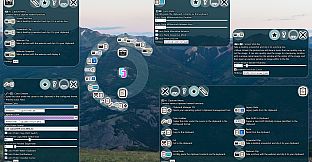
This product is available natively in English, but it has automated translations for most major languages.
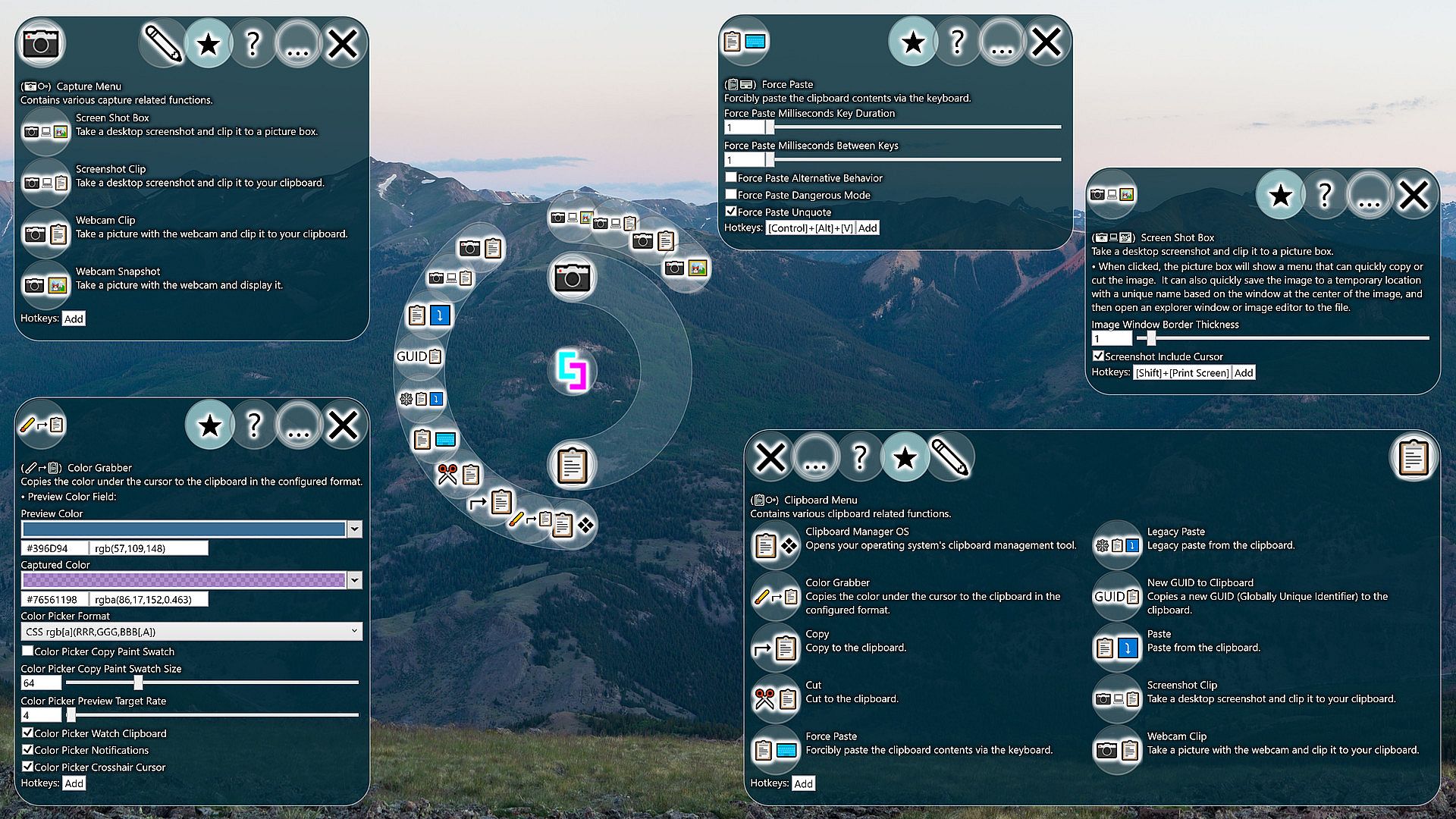
Contents: Cut (✂), Copy (⮣), Paste (⤵), Legacy Paste (⤵), Force Paste (⌨), Color Grabber (⮣), Clipboard Manager OS (❖), Webcam Snapshot (), Webcam Clip (), Screenshot Clip (), Screen Shot Box (), New GUID to Clipboard (GUID)
Cut (✂)
Cut to the clipboard.- Simply sends the [Ctrl]+[X] hotkey via the keyboard. Individual applications may handle [Ctrl]+[X] differently.
Copy (⮣)
Copy to the clipboard.- Simply sends the [Ctrl]+[C] hotkey via the keyboard. Individual applications may handle [Ctrl]+[C] differently.
Paste (⤵)
Paste from the clipboard.- Simply sends the [Ctrl]+[V] hotkey via the keyboard. Individual applications may handle [Ctrl]+[V] differently.
Legacy Paste (⤵)
Legacy paste from the clipboard.- This paste command will tell the currently focused legacy control to paste if the control supports it. Some applications do not respond to [Ctrl]+[V], so this action may work when [Ctrl]+[V] does not.
Force Paste (⌨)
Forcibly paste the clipboard contents via the keyboard.Settings:
- Force Paste Milliseconds Key Duration (Default: 1)
Some systems/programs may experience issues with input that is sent too quickly, so raising this value could alleviate such problems. - Force Paste Milliseconds Between Keys (Default: 1)
Some systems/programs may experience issues with input that is sent too quickly, so raising this value could alleviate such problems. - Force Paste Alternative Behavior (Default: False)
If you are facing issues with the standard behavior, try to flip this option on and see if it works better for you. The alternative behavior currently does not support the additional timing options. - Force Paste Dangerous Mode (Default: False)
Enables SendKeys commands when executing ForcePaste. Also includes an additional {DELAY 1000} command which delays by the number of milliseconds specified. Enabling this feature is potententially dangerous because someone could put an evil command in your clipboard without you knowing, so you could accidentally execute the evil command if you perform a force paste. - Force Paste Unquote (Default: False)
If enabled, removes start and ending quotes when using Force Paste. Some programs like to put quotes around information that you are copying. If you are getting creative with using Force Paste to fill out forms from a spread sheet, for example, going back and removing the outside quotes can interrupt your workflow.
Color Grabber (⮣)
Copies the color under the cursor to the clipboard in the configured format.- Preview Color Field:
- Color Picker Format (Default: Hex #[AA]RRGGBB)
This is the format that the Color Picker will use when copying color information to your clipboard.
- Hex #[AA]RRGGBB: A compact hexadecimal color format. The alpha transparency (if included) is incompatible with many older web browsers.
- CSS rgb[a](RRR,GGG,BBB[,A]): A color format with general compatibility with all browsers' CSS implementations, including alpha transparency support. - Color Picker Copy Paint Swatch (Default: False)
If enabled, copies a paint swatch to the clipboard instead of the color string. - Color Picker Copy Paint Swatch Size (Default: 64)
Controls the size of the paint swatch that the color picker will put on the clipboard. - Color Picker Preview Target Rate (Default: 4)
This is the target rate at which the color grabber preview will try to update itself when visible, in frames per second. Setting the rate to 0 will disable the feature. - Color Picker Watch Clipboard (Default: True)
If enabled, the color grabber window will watch the clipboard for valid colors and update the captured color accordingly. This is useful for quickly converting color information from decimal to hexadecimal or from hexadecimal to decimal. - Color Picker Notifications (Default: True)
If enabled, the color picker will create a visible notification of the color found. - Color Picker Crosshair Cursor (Default: True)
The crosshair cursor is supposed to be better for pixel accurate selection. When enabled, the system crosshair cursor will be used when grabbing a color. If you use the secondary action or a hotkey, however, the cursor will not change, as this setting only impacts the two-step selection process where you click the button and then click your target.
Clipboard Manager OS (❖)
Opens your operating system's clipboard management tool.- Only works on operating systems that have a built-in clipboard management tool.
- Simply sends [❖]+[V], which is the default operating system hotkey for opening its clipboard management tool.
Webcam Snapshot ()
Take a picture with the webcam and display it.Settings:
- Flip Webcam (Default: False)
When enabled, flips the webcam horizontally. This is mainly here because your webcam may already be flipped and you may want to unflip it.
Webcam Clip ()
Take a picture with the webcam and clip it to your clipboard.Screenshot Clip ()
Take a desktop screenshot and clip it to your clipboard.Settings:
- Screenshot Include Cursor (Default: False)
If enabled, the tool will attempt to include the cursor in screenshots.
Screen Shot Box ()
Take a desktop screenshot and clip it to a picture box.- When clicked, the picture box will show a menu that can quickly copy or cut the image. It can also quickly save the image to a temporary location with a unique name based on the window at the center of the image, and then open an explorer window or image editor to the file.
- Image Window Border Thickness (Default: 1)
- Screenshot Include Cursor (Default: False)
If enabled, the tool will attempt to include the cursor in screenshots.
New GUID to Clipboard (GUID)
Copies a new GUID (Globally Unique Identifier) to the clipboard.- GUIDs are normally used by programmers in software to name things uniquely without having to worry about anything else having the same name. I wasn't sure I should give this feature a prominent position, but I decided that the ability to quickly create an almost 100% guaranteed unique identifier could come in useful for pretty much anyone.
- Alternatively, you could just flop your hands onto the keyboard a few times to make an ID that is probably unique...
- New Guid to Keyboard (Default: False)
When using the New Guid To Clipboard action, there is a risk that you will accidentally paste the same GUID twice without realizing it. When this option is enabled, it changes the behavior of the feature to simply type the new GUID instead, without storing it in the clipboard.